Help me display Salesforce dashboards and KPIs on the team TV.
I can help. First connect or choose a listed Salesforce dashboard, then I will prepare the screen for review.
Put it on the lobby screen and keep it simple.
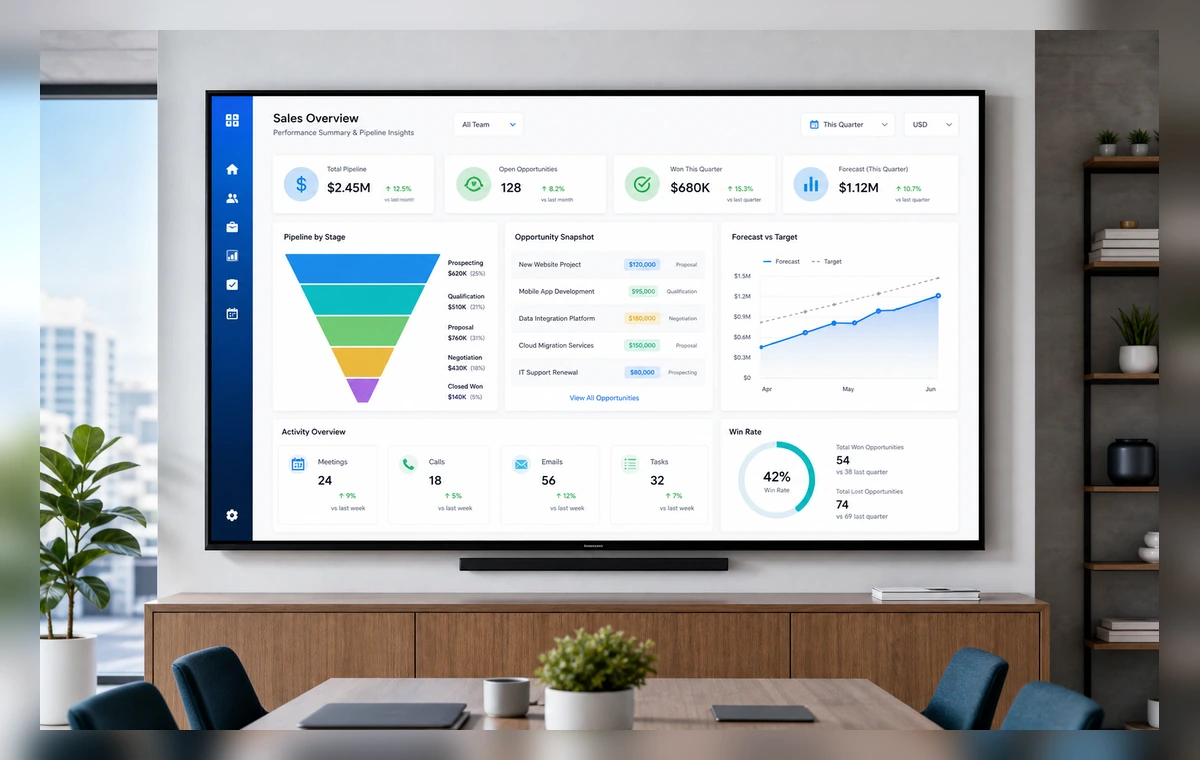
Ready for review. I prepared the slide, selected the paired screen, and kept the layout readable from a distance.
1
Connect or add the source
Open ScreenaAI Console, choose Apps & Integrations or Dashboards, and connect or add a listed Salesforce dashboard.
2
Create a slide
Go to Slides, create a new slide, choose the connected source, and review the screen layout.
3
Assign and display
Add the slide to a playlist, assign it to your paired screen or screen group, and publish.
Why show Salesforce KPI dashboards on TV
Important updates lose value when they stay buried in tabs, tools, and private dashboards. ScreenaAI helps teams turn a listed Salesforce dashboard into a shared screen that people can understand at a glance.
What to show
Use the TV for the information your audience needs repeatedly: status, schedules, priorities, announcements, queues, or live progress. Keep private details out of shared spaces and favor large cards, short labels, and simple charts.
AI setup versus manual setup
The AI path is best when Salesforce is already connected and you want to describe the dashboard you need in plain language. Manual setup is best when you want to choose the exact Salesforce dashboard, layout, playlist, and screen yourself.
Step-by-step summary
- Connect or add a listed Salesforce dashboard in ScreenaAI Console.
- Create a slide and review the layout for TV readability.
- Assign the slide to your paired screen or screen group and publish.
How do I display Salesforce dashboards and KPIs with ScreenaAI?
Open ScreenaAI Console, connect or add a listed Salesforce dashboard, create the screen-ready slide, then assign it to your paired screen or screen group.
Can I use AI instead of the manual setup?
Yes. Describe the screen you want in plain language, then review the suggested Salesforce KPI dashboards setup before publishing.
How long does setup take?
The manual setup is designed to stay under 2 minutes for a simple Salesforce dashboard screen. The AI approach is designed to take about 30 seconds once Salesforce is connected and the dashboard is available.
Do I need to keep a browser open on the TV?
No. Pair the screen once, publish from ScreenaAI Console, and manage the content from the Console.