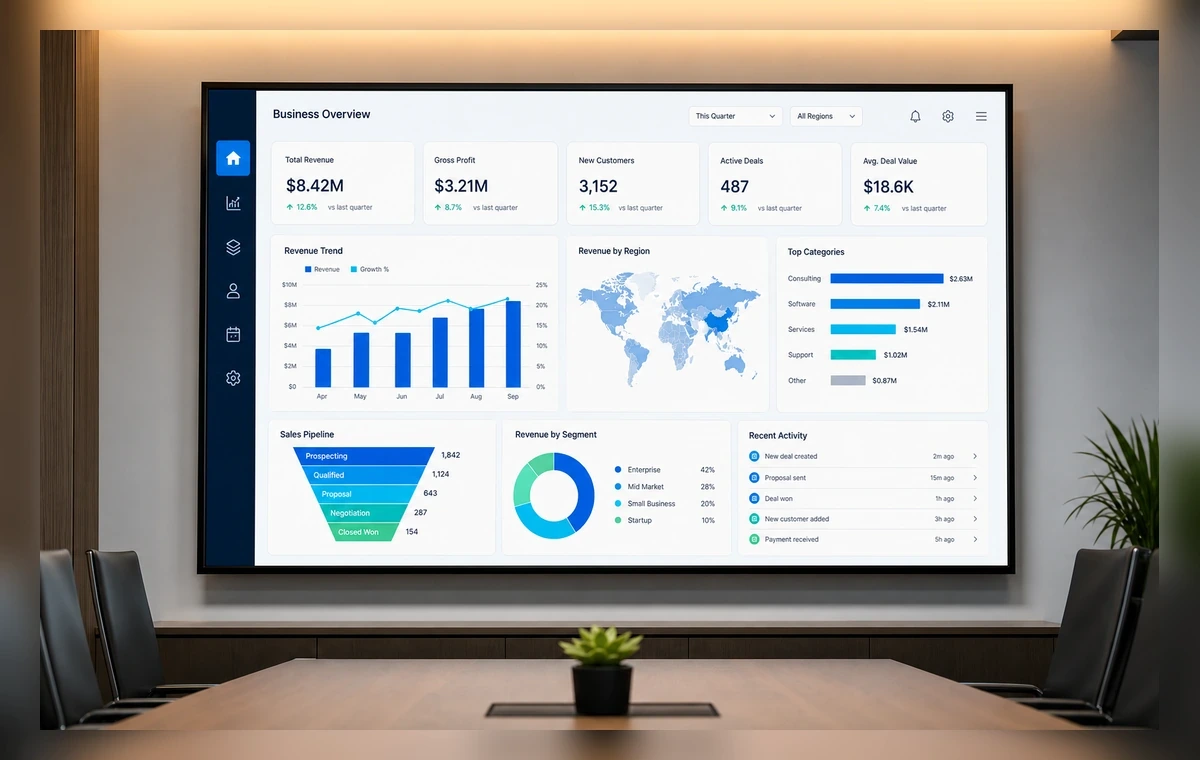
Help me display Google Sheets or Excel on the team TV.
I can help. First connect or choose a spreadsheet or workbook view, then I will prepare the screen for review.
Put it on the lobby screen and keep it simple.
Ready for review. I prepared the slide, selected the paired screen, and kept the layout readable from a distance.
1
Connect Google Sheets or Excel
Open ScreenaAI Console, choose Apps & Integrations, and connect Google Sheets or Excel.
2
Create a slide
Go to Slides, create a new slide, choose spreadsheet content, and review the screen layout.
3
Assign and display
Add the slide to a playlist, assign it to your paired screen or screen group, and publish.
Why show spreadsheet screens on TV
Important updates lose value when they stay buried in tabs, tools, and private dashboards. ScreenaAI helps teams turn a spreadsheet or workbook view into a shared screen that people can understand at a glance.
What to show
Use the TV for the information your audience needs repeatedly: status, schedules, priorities, announcements, queues, or live progress. Keep private details out of shared spaces and favor large cards, short labels, and simple charts.
AI setup versus manual setup
The AI path is best when you can describe the outcome in plain language. Manual setup is best when you want to choose the exact Google Sheets or Excel content, layout, playlist, and screen yourself.
Step-by-step summary
- Connect Google Sheets or Excel in ScreenaAI Console.
- Create a slide and review the layout for TV readability.
- Assign the slide to your paired screen or screen group and publish.
How do I display Google Sheets or Excel with ScreenaAI?
Open ScreenaAI Console, connect Google Sheets or Excel, choose the spreadsheet or workbook view, create the screen-ready slide, then assign it to your paired screen or screen group.
Can I use AI instead of the manual setup?
Yes. Describe the screen you want in plain language, then review the suggested spreadsheet screens setup before publishing.
How long does setup take?
The manual setup is designed to stay under 2 minutes for a simple screen. The AI approach is faster when Google Sheets or Excel is ready to use.
Do I need to keep a browser open on the TV?
No. Pair the screen once, publish from ScreenaAI Console, and manage the content from the Console.